
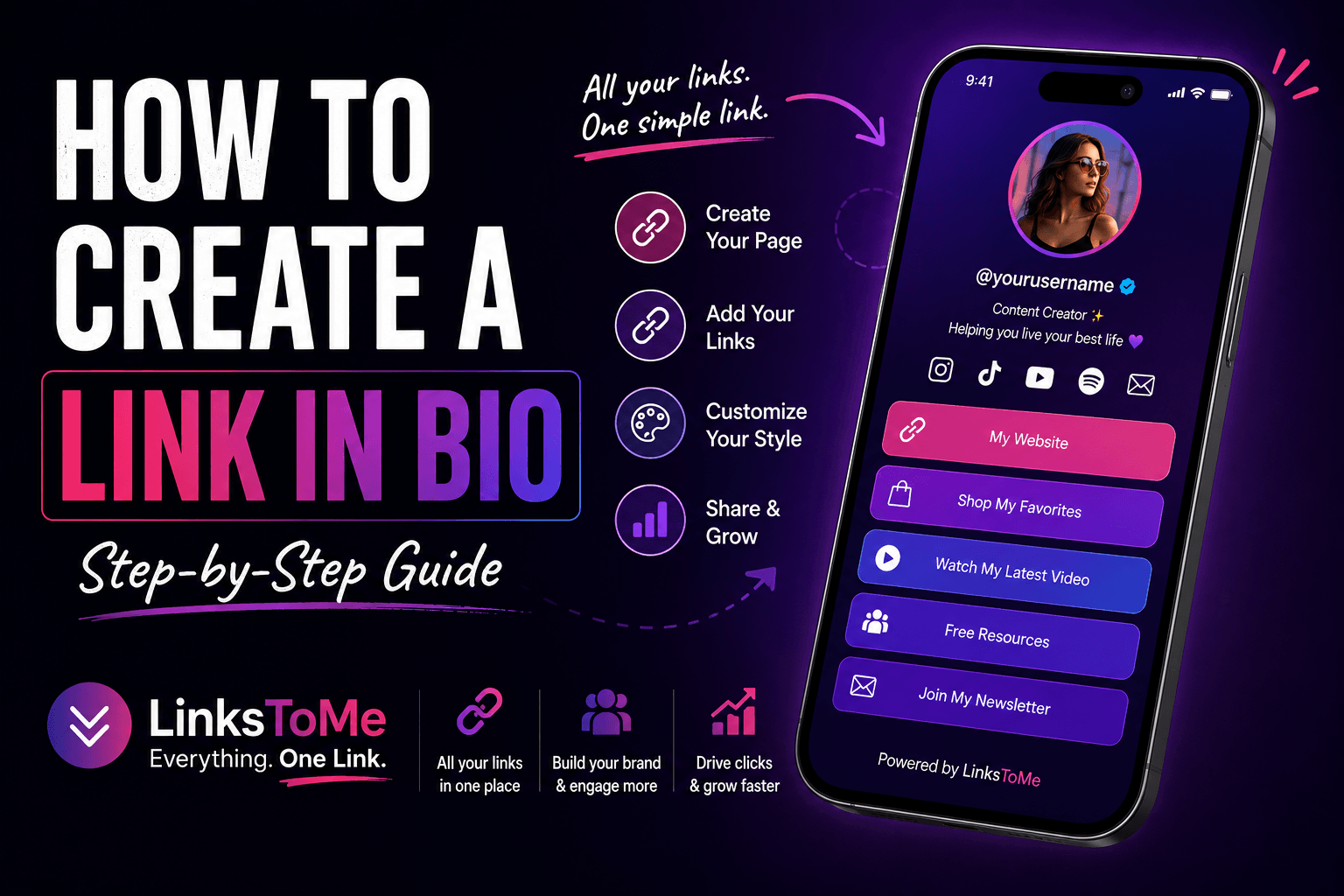
Whether you are looking for how to create a link in bio page on Facebook, Instagram, X, or TikTok, we have prepared the best and easiest-to-follow guide on how to create a link in bio page using the LinksToMe free link in bio tool for creators like you.
Honestly, creating a link in bio page is one of the easiest ways to put all your important links, content, social profiles, media, and updates in one place.
Instead of sending people to different links one after another, you can create one simple page that works as your personal online hub for links. This is especially useful if you are active on Instagram, TikTok, X, YouTube, Facebook, LinkedIn, or any other social platform where your bio link space is limited.
With LinksToMe, you can create a branded bio page, add links, embed media, post stories, customize your appearance, track clicks, generate a QR code, and manage everything from one dashboard.
What Is LinksToMe?
LinksToMe is a modern link in bio tool that helps creators, businesses, influencers, musicians, freelancers, coaches, and brands launch a professional bio page in minutes.
Unlike basic bio link tools that only allow you to list buttons, LinksToMe gives you a more active and engaging page. You can add normal links, embed media, post image, video, audio, and text stories, customize your page design, and track your results from the dashboard.
This makes it useful for anyone who wants a simple but powerful page for links, promotions, updates, products, videos, music, and social media profiles.
Why You Need A Link In Bio Page
Most social media platforms limit how many clickable links you can place in your profile. That becomes a problem when you want to promote more than one thing.
For example, you may want to share your Instagram, TikTok, YouTube channel, online store, portfolio, booking page, podcast, latest song, blog post, newsletter, affiliate product, or WhatsApp contact.
Instead of constantly changing your bio link, you can use one LinksToMe page as your main destination.
Your audience only needs to click one link, and from there, they can find everything important about you.
Step 1: Go to the LinksToMe Signup Page
To begin, visit the LinksToMe signup page: https://linkstome.com/signup
The signup page has a clean, dark, modern design. On the left side, LinksToMe explains what the platform helps you do: create a branded bio page, post short-lived story updates, and share your page online and offline with one memorable destination.
On the right side, you will see the account creation form titled “Create Your Page.”
Step 2: Create Your LinksToMe Account
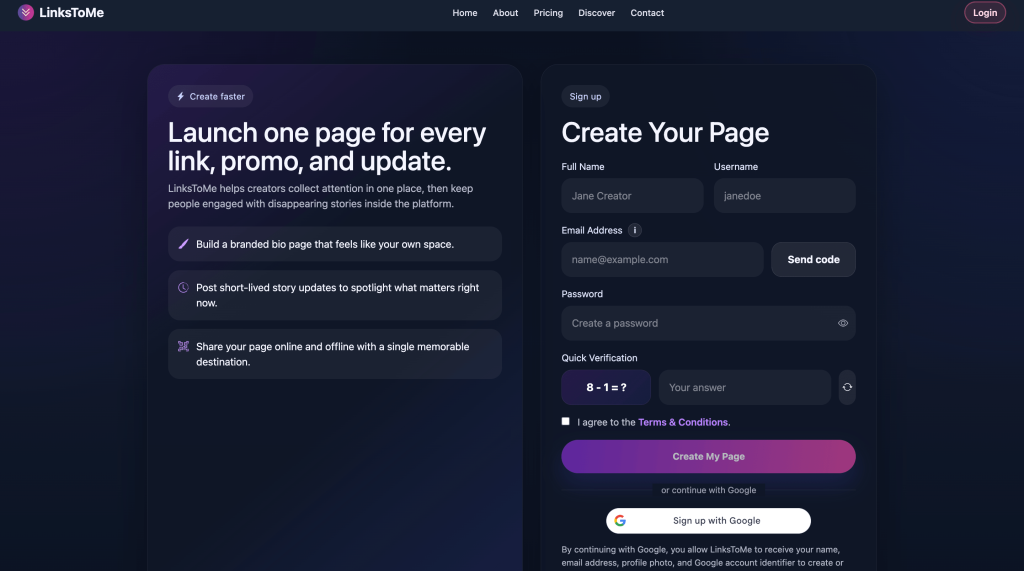
To create your account, fill in your full name, username, email address, and password.
Your username is very important because it becomes part of your public LinksToMe page. Choose a username that is simple, memorable, and close to your brand name or social media handle.
After entering your email address, click “Send code” to verify your email. Then complete the quick verification question, agree to the terms and conditions, and click “Create My Page.”
You can also sign up faster using the “Sign up with Google” option.
After a successful account creation, you will be greeted with a pop-up screen that lets you choose categories you are interested in.
See image below:
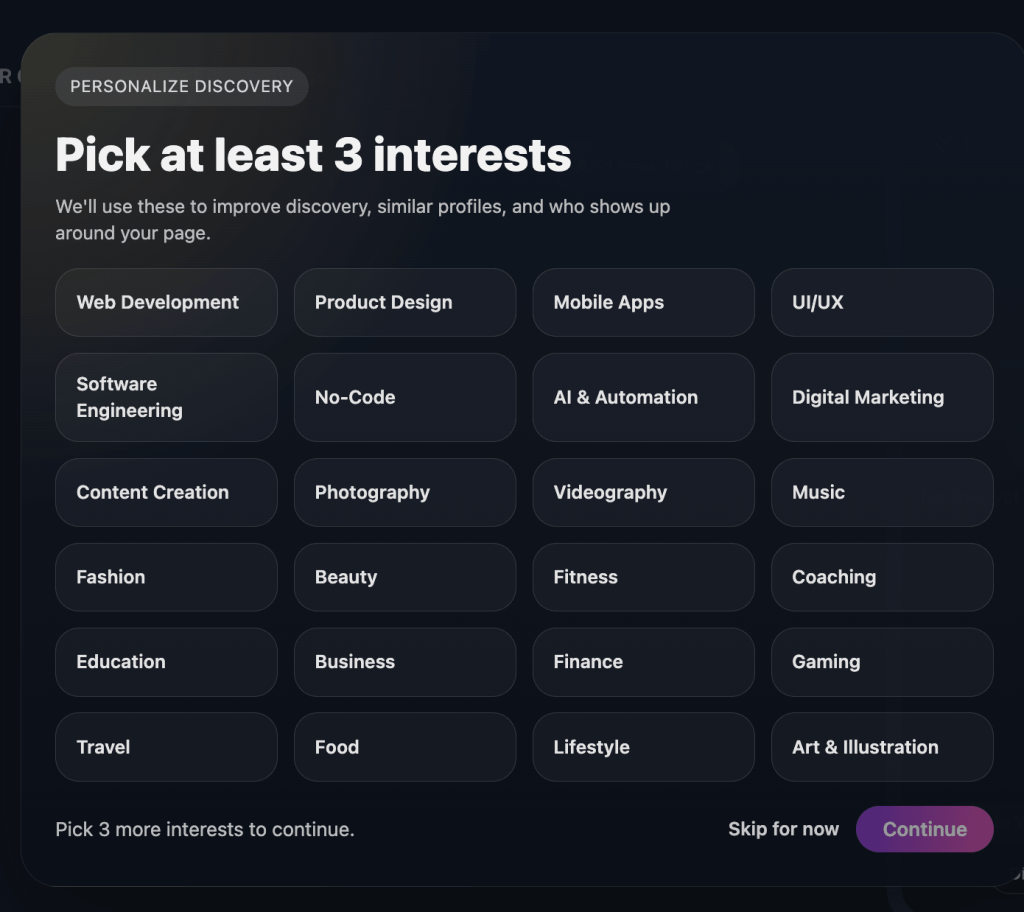
You can pick a minimum of three options from the interest box and click “continue” or decide to skip for now.
Step 3: Log In to Your Account
After creating your account, go to the login page: https://linkstome.com/login
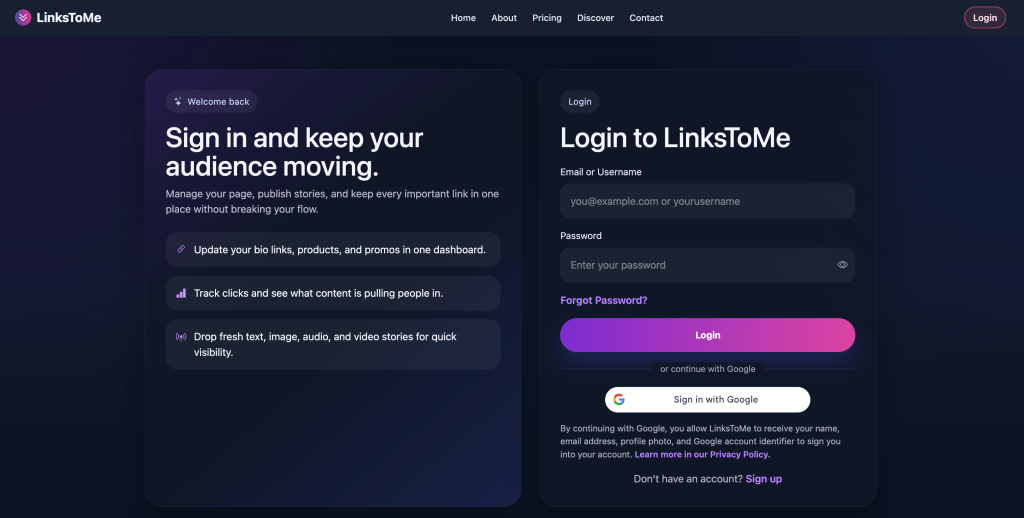
You can log in using your email address or username and password. There is also a Google sign-in option.
Once you are logged in, you will be taken to your dashboard. This is where you manage your profile, links, stories, design, QR code, analytics, and settings.
Step 4: Understand the LinksToMe Dashboard
The dashboard is simple and organized into different tabs.
You will see sections such as Content, Appearance, QR Code, Metrics, and Settings.
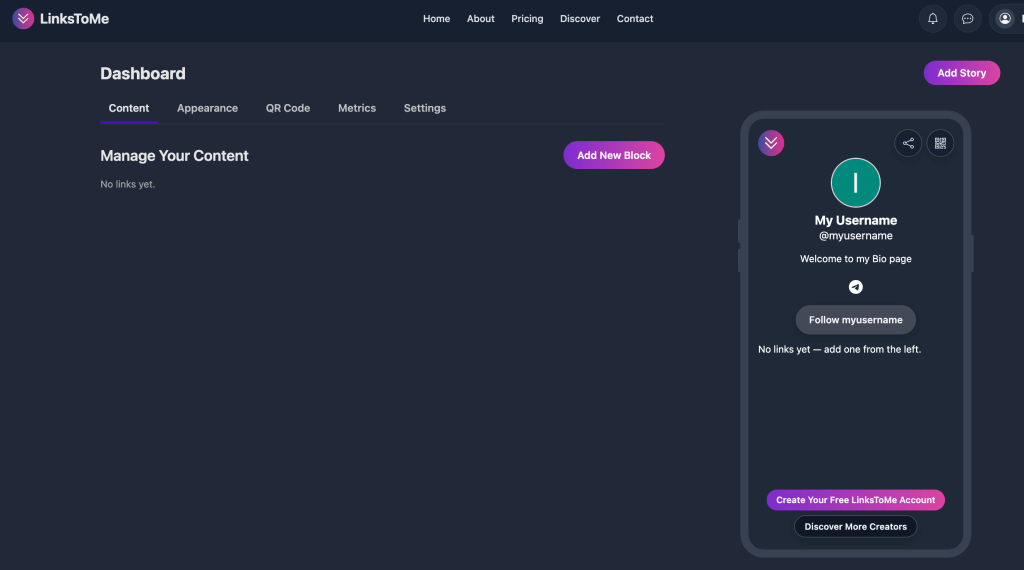
On the right side of the dashboard, LinksToMe shows a live mobile preview of your public page. This is very helpful because you can see how your bio page will look to visitors as you make changes.
The live preview makes the setup process easier because you do not have to keep opening your public page in another tab after every edit.
Step 5: Add Your First Link
To add a link, open the Content tab and click “Add New Block.”
A popup titled “Add New Link” will appear.
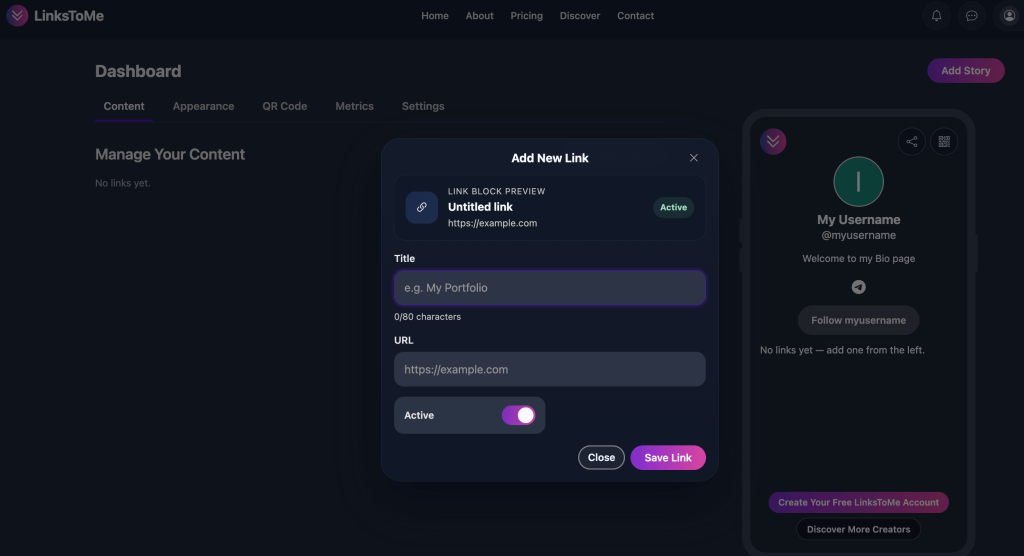
Inside the popup, you will see fields for the link title and URL. You will also see an “Active” toggle and an “Embed media” toggle.
For a normal link, enter the title and URL, leave “Embed media” turned off if you are on the premium plan, and click “Save Link.”
For example, your title could be “My Portfolio,” “Book a Consultation,” “Follow Me on Instagram,” “Shop My Products,” or “Watch My Latest Video.”
The title is what visitors will see on your page, so make it clear and action-focused.
Step 6: Add Embedded Media
If you want to add media instead of a plain button, turn on the “Embed media” toggle inside the Add New Link popup.
When you toggle it on, extra fields will appear.
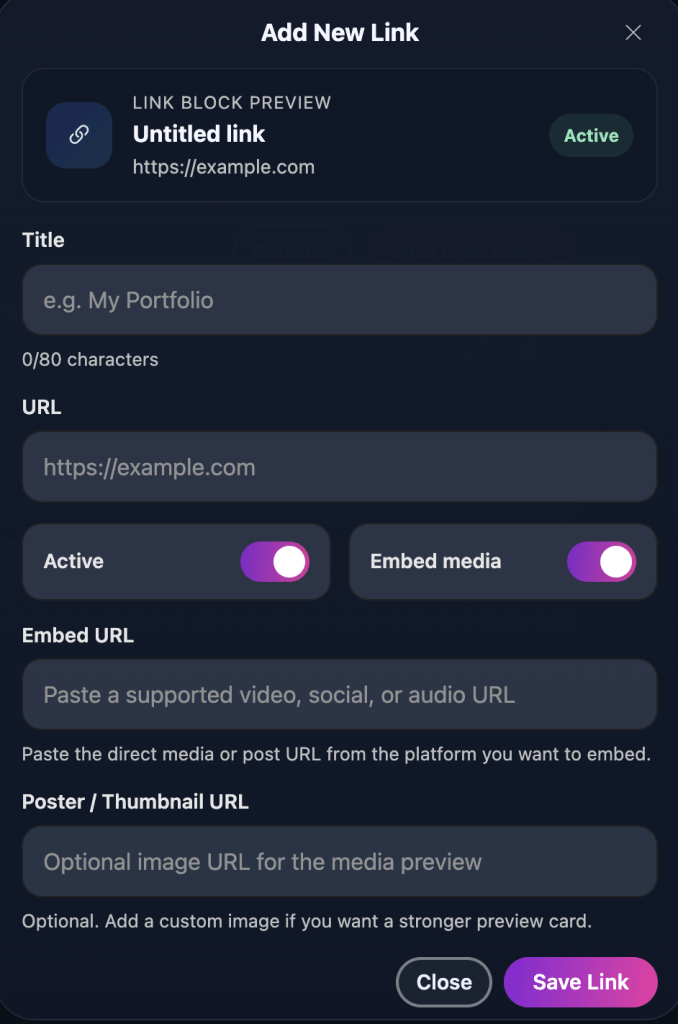
You will see an “Embed URL” field where you can paste a supported video, social, or audio URL. You will also see a “Poster / Thumbnail URL” field where you can optionally add a custom image for the media preview. This option is available to premium users only. See pricing.
This is useful if you want to display music, videos, social posts, or other supported media directly on your page instead of only sending people away through a plain link.
For musicians, podcasters, YouTubers, coaches, creators, and brands, this makes the page more engaging and professional.
Step 7: Use The Active Toggle
The Active toggle lets you control whether a link or media block appears on your public page.
If the toggle is turned on, visitors can see the block.
If it is turned off, the block stays saved in your dashboard but does not appear publicly.
This is useful when you want to prepare a link ahead of time, hide an expired offer, or temporarily remove a promotion without deleting it completely.
Step 8: Reorder Or Manage Your Content
After adding links and media blocks, they will appear in the Content section.
You can edit existing blocks, delete blocks, and reorder them.
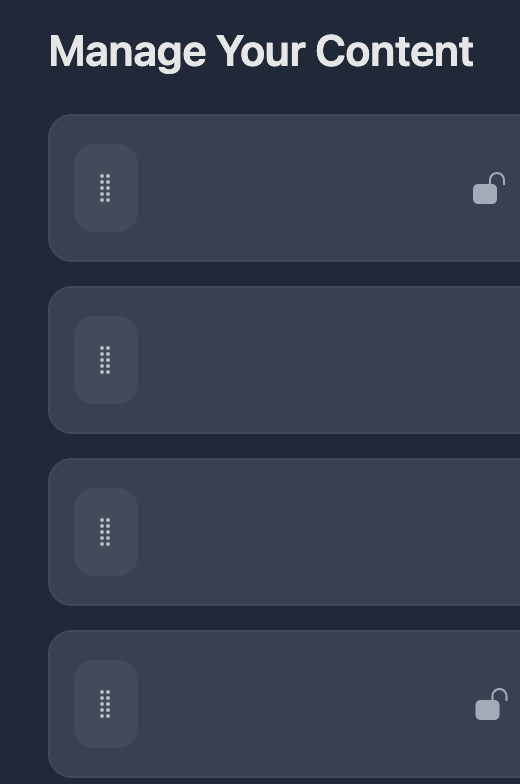
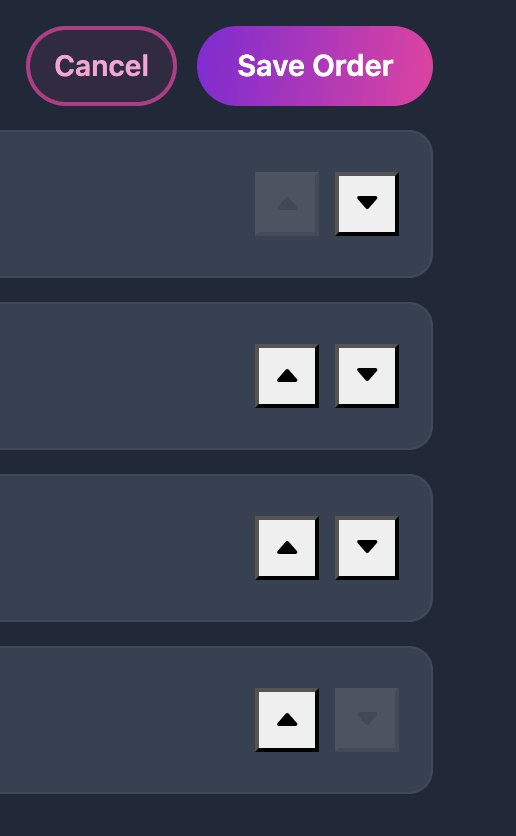
Premium users can reorder their link/content blocks using the “Reorder” feature, a drag and drop feature will be activated immediately. You can also use the up and down arrow button on your dashboard to move up or down. See the screenshots below:
Click the “Reorder” button to start arranging your links with drag and drop.
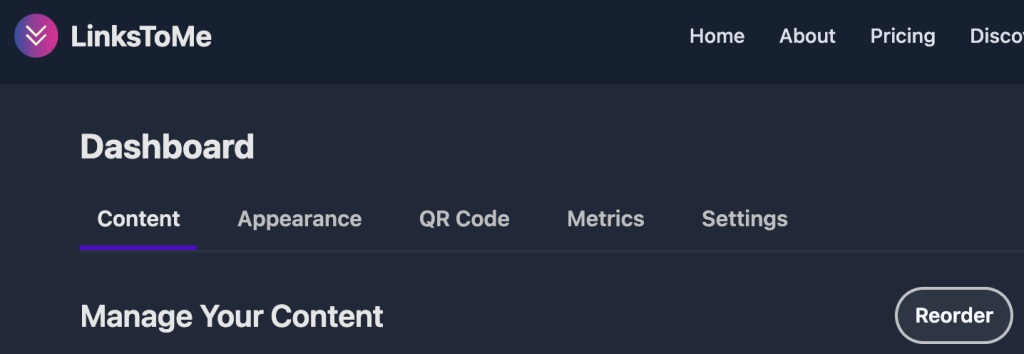
Use the left drag and drop option or the up and down arrow buttons at the right side of the screen. See the screenshots below:
The order of your links matters because visitors usually click what they see first. Put your most important link at the top.
For example, if you are launching a product, place the product link first. If you want more Instagram followers, place your Instagram link near the top. If you are promoting a YouTube video, make it easy to find.
Step 9: Add Stories to Your Page
One of the strongest features of LinksToMe is the story feature.
To add a story, click the “Add Story” button in your dashboard.
A popup titled “Add to Your Story” will appear. From there, you can choose the type of story you want to post.
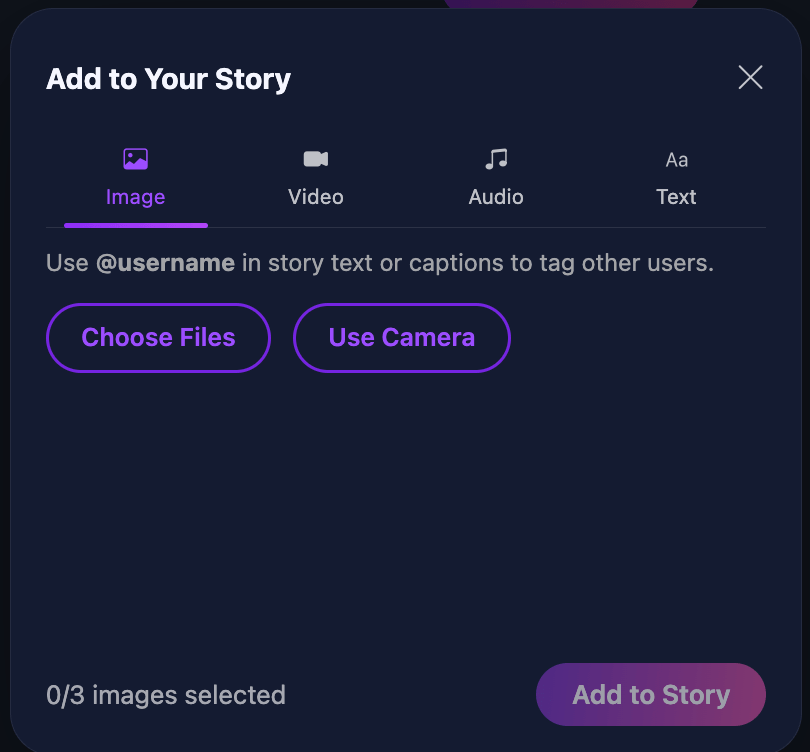
LinksToMe supports image stories, video stories, audio stories, and text stories.
You can upload files, use your camera, write captions, and share quick updates with your audience.
Step 10: Tag Users In Your LinksToMe Stories To Keep Your Page Active
Stories make your LinksToMe page feel fresh and alive.
Instead of having a static page that never changes, you can post updates, promotions, announcements, daily thoughts, music previews, product news, event reminders, or behind-the-scenes content.
You can also tag other users in stories using @username mentions inside story text or captions.
This makes LinksToMe more interactive than a basic link page. Once you type “@” you will see suggestions, you can type out the username you want to tag if the one you want is not on the list.
For creators, stories are powerful because they give visitors another reason to check your page again.
Step 11: Customize Your Page Appearance
Next, go to the Appearance tab.
This is where you customize how your public bio page looks.
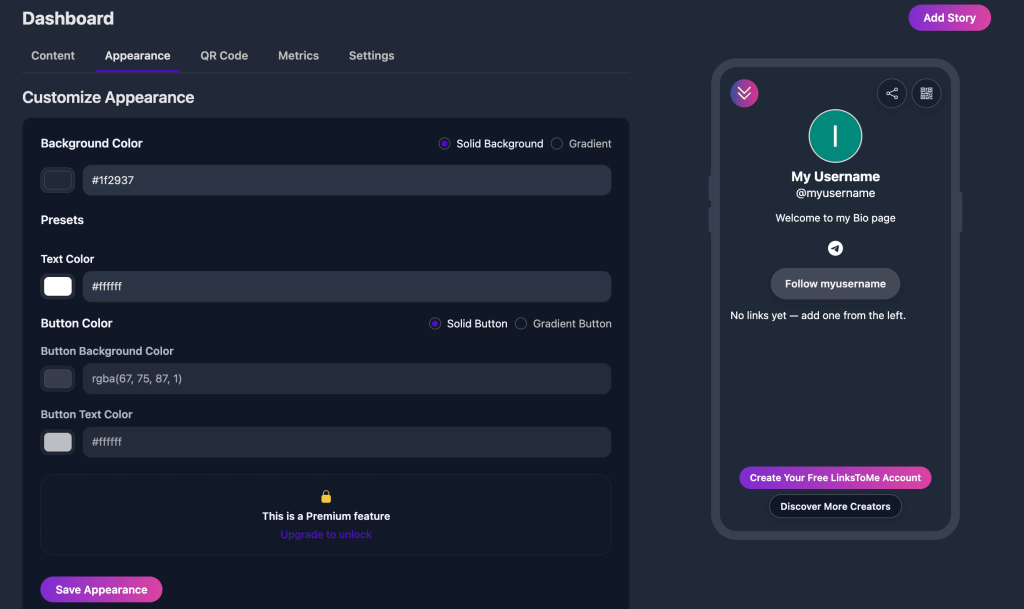
You can change your background color, choose a solid color, use a gradient, or add an image background. You can also edit your text color, button background color, and button text color.
This is important because your bio page should match your brand.
A musician may want a bold and creative look. A business owner may prefer something clean and professional. A fashion creator may choose stylish colors. A tech founder may prefer a dark premium appearance.
After making changes, click “Save Appearance.”
Note: Only premium users can upload background images, and many other appearance customisations not available to our free link in bio tool.
Step 12: Generate And Download Your QR Code
Go to the QR Code tab.
LinksToMe automatically generates a QR code for your profile.
Visitors can scan this code with their phone and go directly to your LinksToMe page.
This is useful for offline promotion.
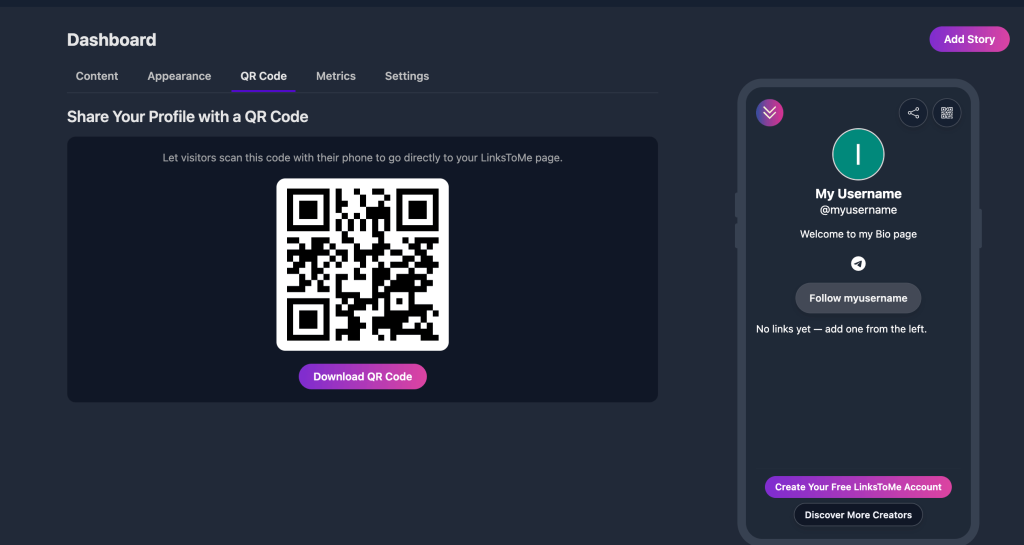
You can use your QR code on business cards, event banners, flyers, restaurant menus, product packaging, posters, brochures, and physical stores.
Click “Download QR Code” to save it to your device.
Step 13: Track Your Performance
Go to the Metrics tab to see how your page is performing.
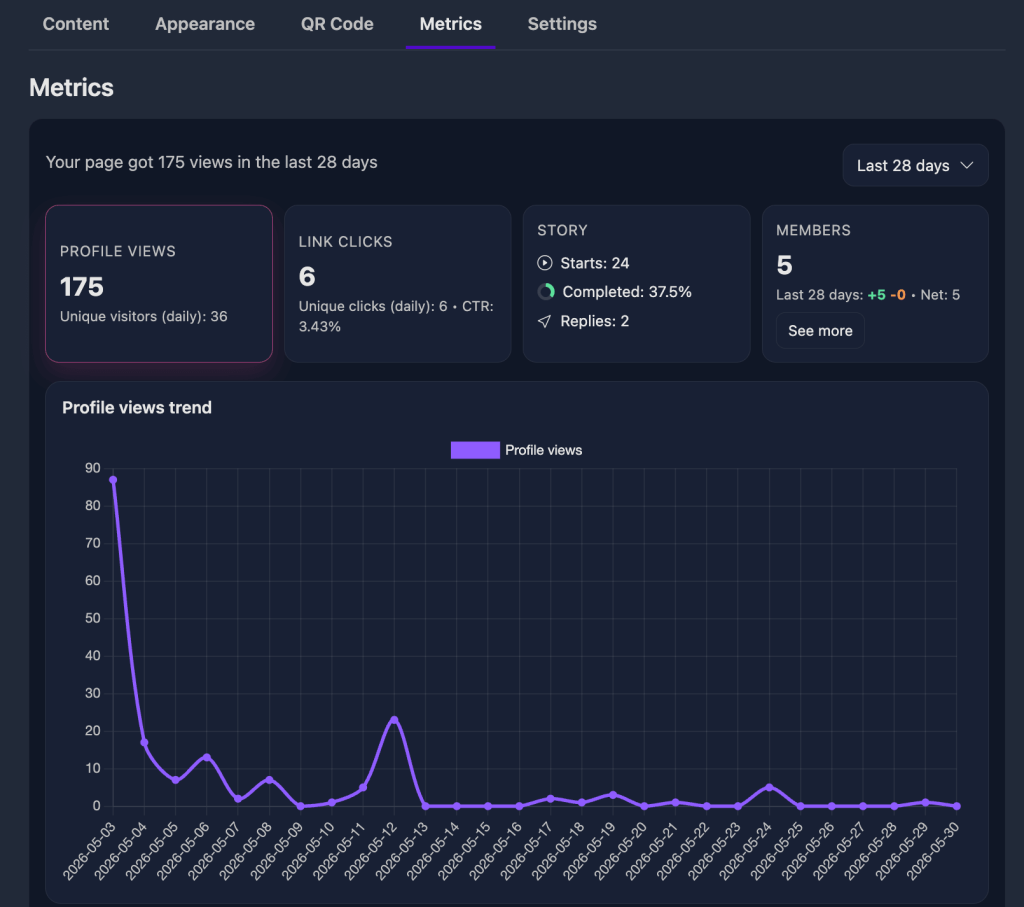
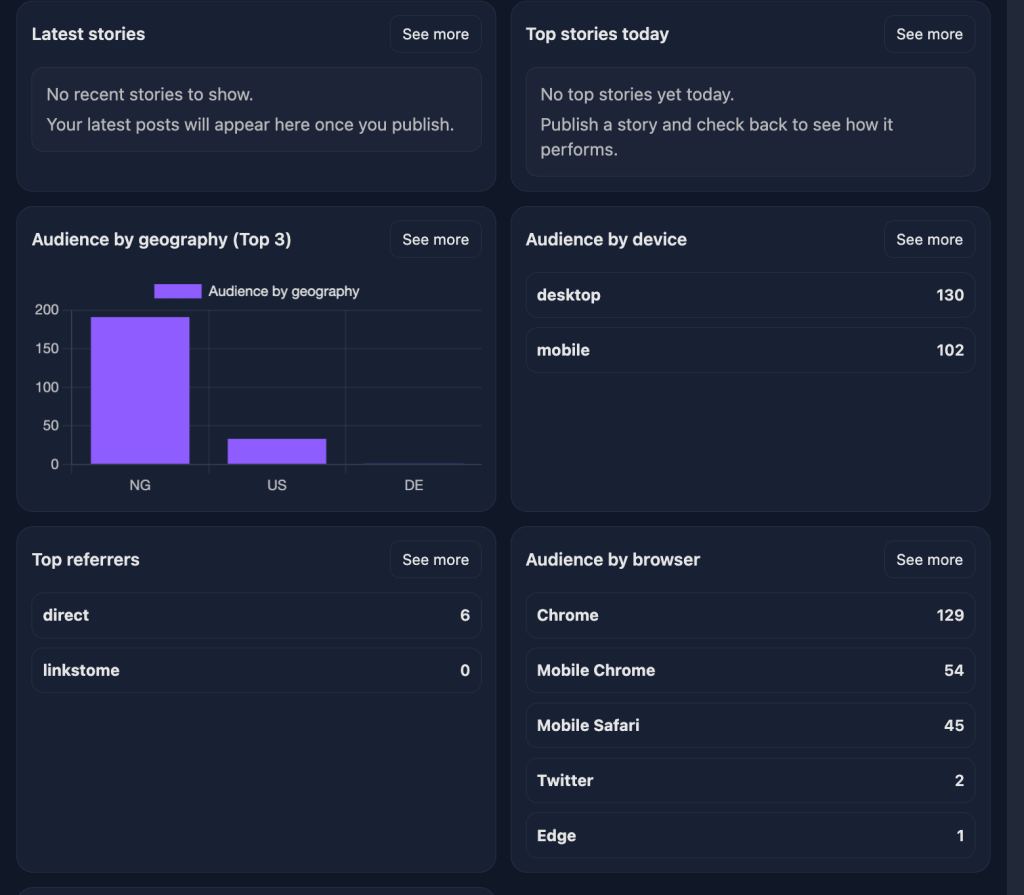
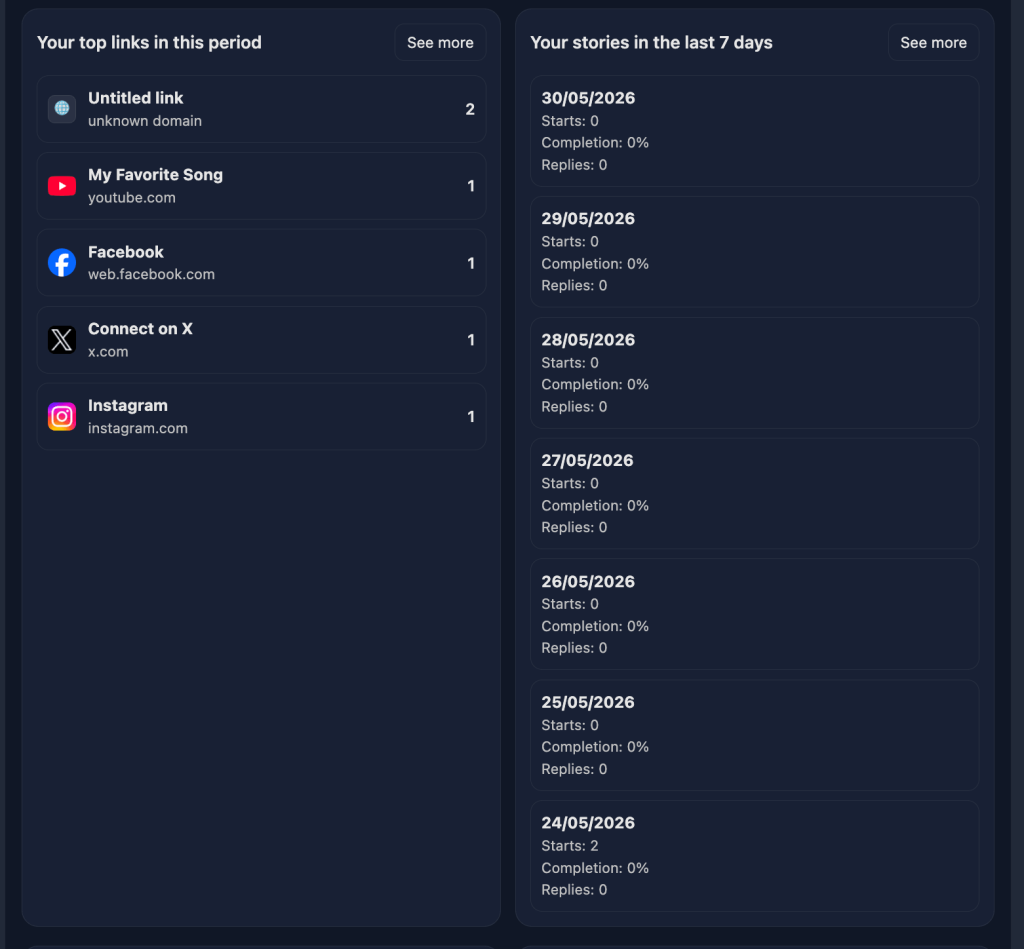
The metrics section shows useful data such as profile views, link clicks, story activity, members, and trends over time.
This helps you understand what your audience is clicking and how people interact with your page.
For example, if one link gets more clicks than others, you may want to move it higher. If your stories are getting attention, you may want to post more often. If your profile views are growing but clicks are low, you may need to improve your button titles or page layout.
Step 14: Edit Your Profile Information
Go to the Settings tab to update your profile.
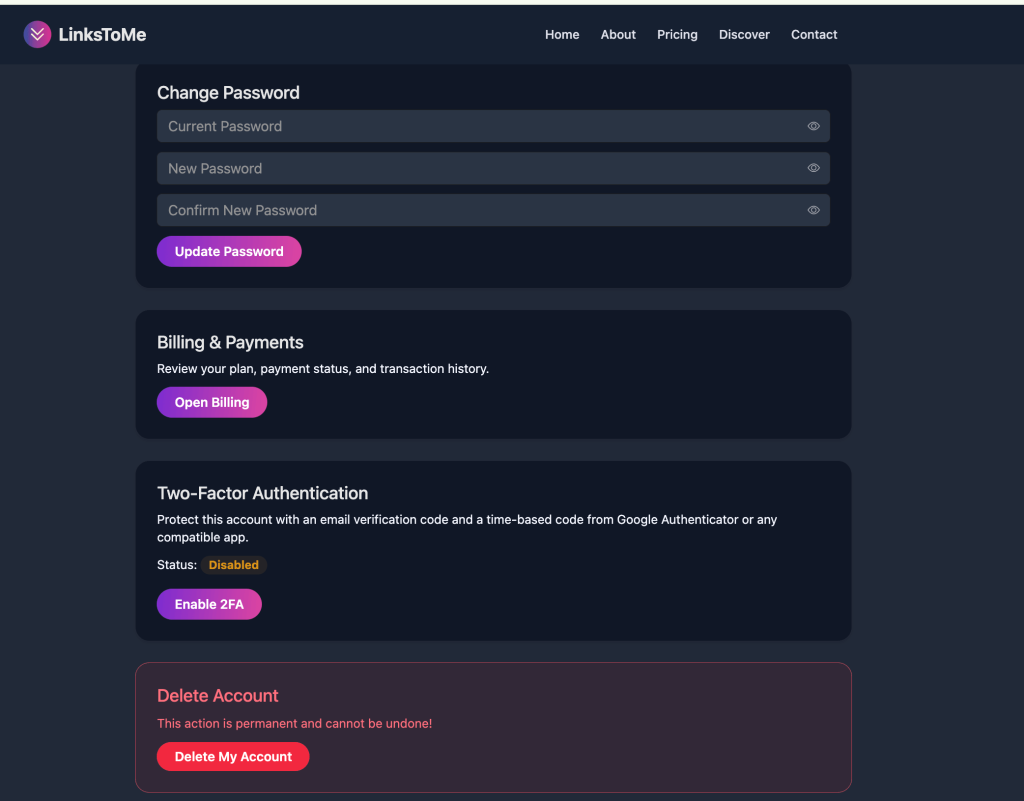
Here, you can change your profile picture, name, username, and bio. You can also update your social media profile links, change your password, update your billing information, setup 2FA or even delete your account.
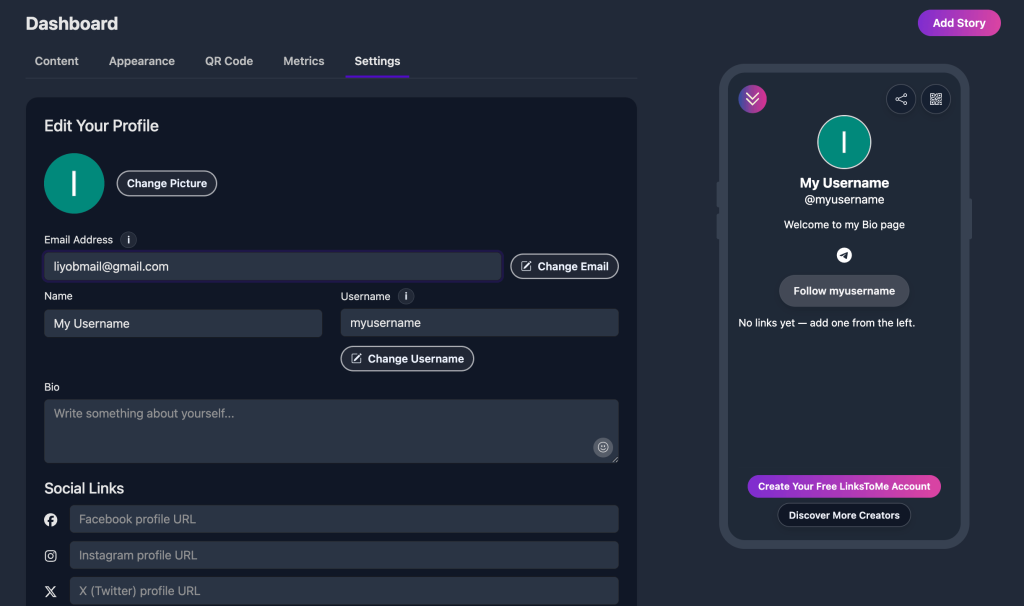
Your bio should quickly tell visitors who you are and what they can expect from your page.
A good bio is short, clear, and useful.
For example:
“Helping creators grow their online presence.”
“Photographer available for bookings.”
“Music artist sharing new sounds and exclusive updates.”
“Digital creator, founder, and storyteller.”
See more bio idea for Instagram, Tiktok, X, and more on your blog: www.linkstome.com/blog/
Step 15: Preview Your Page
As you build your page, keep checking the mobile preview on the right side of the dashboard.
The preview shows your profile picture, name, username, bio, social icons, follow button, links, and embedded content.
This helps you see exactly how visitors will experience your page on mobile.
Since most people will open your bio link from Instagram, TikTok, or other mobile apps, your mobile appearance is very important.
Step 16: Upgrade if You Need More Features
LinksToMe has a free plan for users who are starting out.
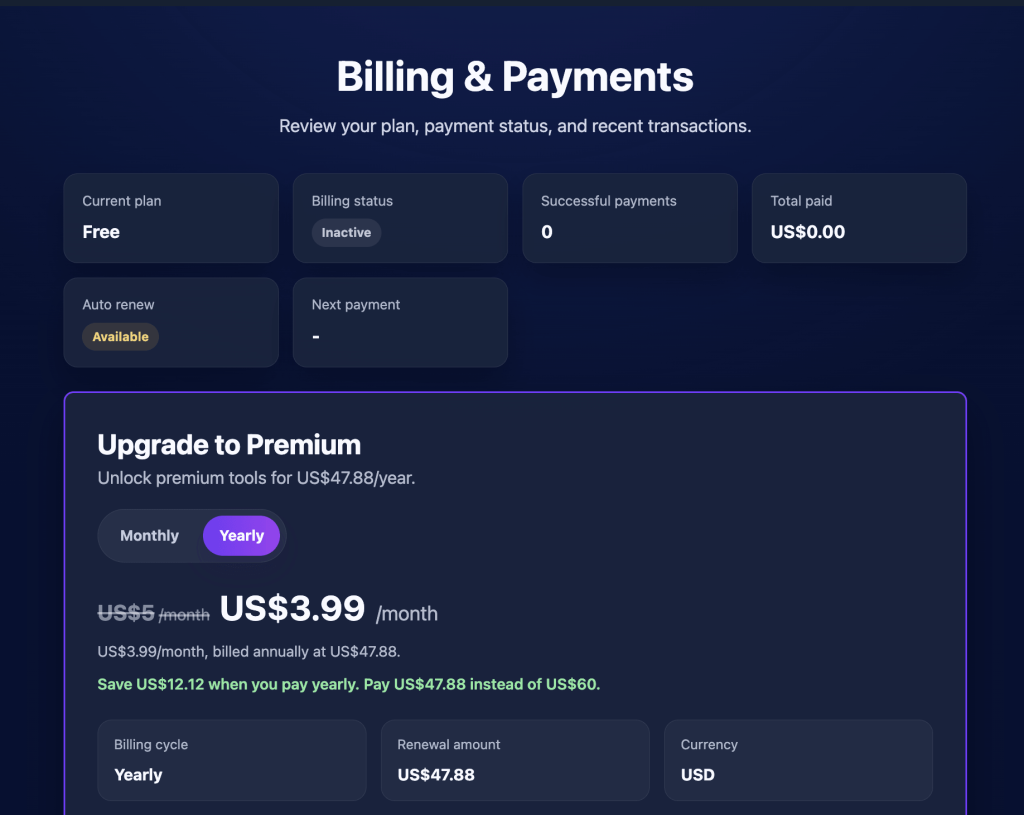
The free plan includes up to four content blocks, basic appearance customization, stories, QR code, and user tagging in stories.
For creators and businesses that need more power, the premium plan unlocks more advanced features such as unlimited content blocks, video and music embeds, advanced appearance options, detailed link analytics, block reordering, priority support, verified checkmark, and direct messaging from stories.
This makes Premium useful if you want to use your LinksToMe page seriously for business, content growth, promotion, or monetization. To upgrade to premium, visit this link while logged in: https://linkstome.com/dashboard/payment
Best Practices For A Better Link In Bio Page For You
Do not overload your page with too many links. A clean page usually performs better than a cluttered one.
Put your most important link first. Visitors may not scroll through everything, so your main offer should be easy to find.
Use clear button titles. Instead of “Click Here,” use direct phrases like “Watch My Latest Video,” “Shop My Products,” “Book a Session,” or “Listen to My New Song.”
Use a good profile picture. People trust pages that look real and professional.
Keep your bio short but meaningful. Visitors should understand who you are within a few seconds.
Update your stories often. Fresh stories make your page feel active.
Check your metrics regularly. Your analytics can show you what is working and what needs improvement.
Final Thoughts
Creating a link in bio page with LinksToMe is simple, but our platform gives you more than just a basic link page.
You can sign up, add links, embed media, post stories, customize your appearance, generate a QR code, track performance, and manage your entire creator profile from one dashboard.
For creators, influencers, businesses, musicians, coaches, freelancers, and brands, LinksToMe gives you a professional way to bring all your important content into one place.
Instead of sending your audience to scattered links, you can give them one clean, branded, and memorable destination.
Start by creating your page at: https://linkstome.com/signup